 LifeTrellis
A practical, day-by-day guide to setting up LifeTrellis: shared family calendar, recurring chores, the shopping list and a weekly meal plan — in about 15 minutes a day.
Want to click along without an account? Open the live demo — it is filled with a sample family's week.
Day 1
Create your family space and invite one person
- Sign up free, open Family and create your family group.
- Copy the invite link and send it to just one other adult first. Two people using it beats five people ignoring it.
Tip: Start with the person who most often asks "what are we doing this weekend?"
Day 2
Put the fixed week into the shared calendar
- Add the things that happen every week: school, work shifts, training, lessons. Set each to repeat weekly.
- Give each person a colour so everyone can scan the week in seconds.
Tip: Only add what is certain. A calendar full of maybes gets ignored.
Day 3
Move recurring chores out of your head
- Open Errands and add the chores you keep reminding people about: bins, laundry, watering plants.
- Assign each one and set it to repeat. Add a reminder so the app nags instead of you.
Tip: Pick three chores, not thirty. Add more once the first ones stick.
Day 4
Share one shopping list
- Open Shopping and add the staples you buy every week.
- Ask everyone to add items the moment something runs out — whoever is at the shop sees the live list.
Tip: Use "Edit order" to sort the list by the aisles of your usual shop.
Day 5
Plan next week's dinners in ten minutes
- Open the Meal planner and fill in five dinners. Leave two evenings free for leftovers or takeaway.
- Add the missing ingredients to the shopping list.
Tip: Repeat the plans that worked. Nobody needs fourteen new recipes a fortnight.
Day 6
Put the dashboard on your home screen
- Install LifeTrellis from the home page so it opens like an app.
- Turn on notifications in Profile → Notifications so reminders arrive even when the app is closed.
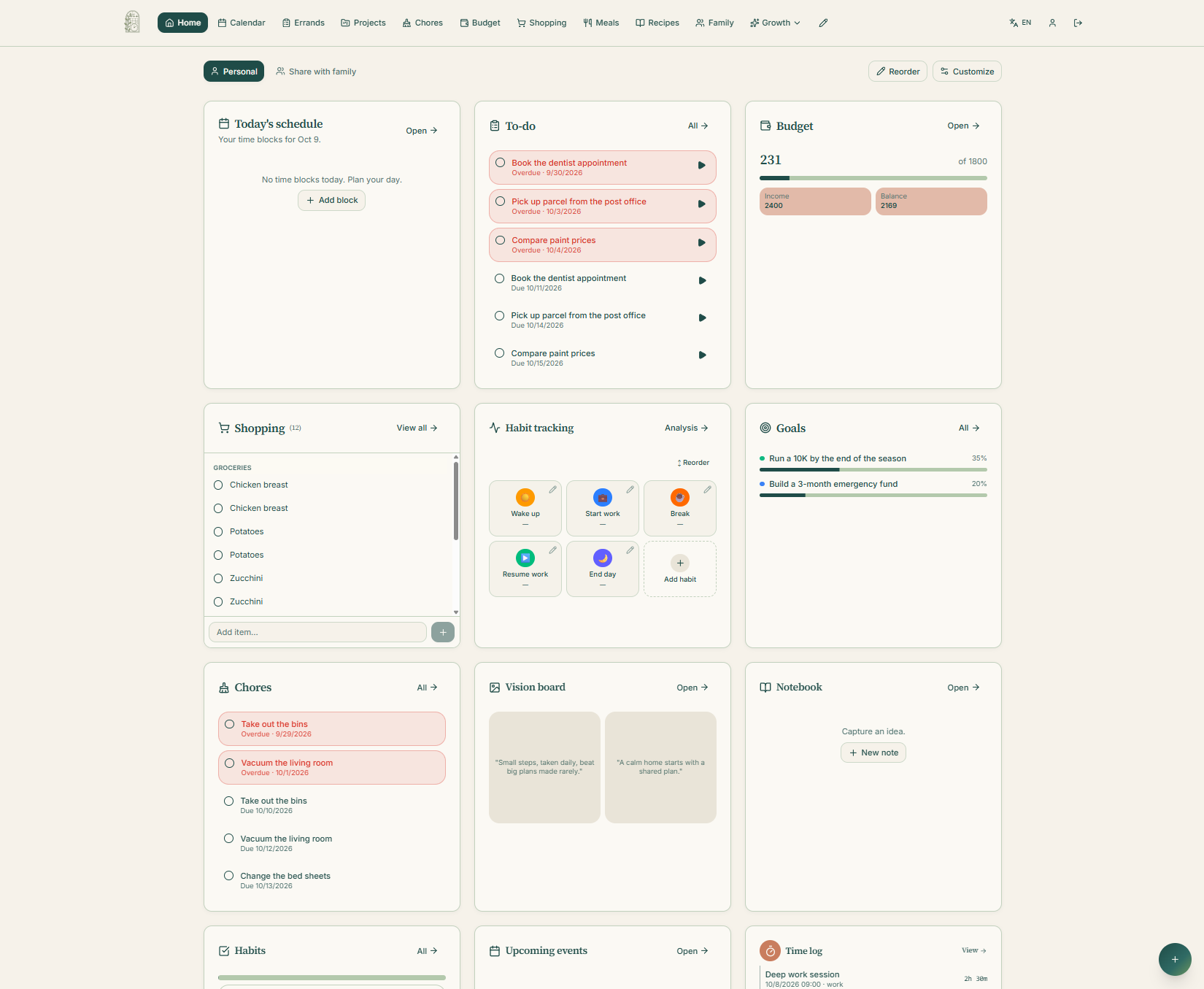
- Rearrange the dashboard tiles so today's schedule and to-dos are on top.
Tip: On iPhone, notifications only work after adding LifeTrellis to the Home Screen.
Day 7
Hold a five-minute Sunday check-in
- Open next week together: anything new for the calendar? Any chores to swap?
- Tick off what got done and delete what nobody needs.
Tip: Keep it short. The point is that everyone sees the same week, not a meeting.
After the first week
Most families stop here, and that is fine. When you are ready, add the shared budget, habits or projects — they use the same calendar and reminders.
Start free